
Here is a standardized operating procedure (SOP) for installing the Duggal CMS on NovaStar media players connected to the specified LED hardware.
Standard Operating Procedure: Duggal CMS Installation
Target Hardware: NovaStar Media Players
Display Hardware: NEW PIXEL Foldable LED Kiosk (Custom Native Resolution)
Resolution: 344 x 1032 px
Pixel Pitch: 1.87mm
Prerequisites
Hardware: USB Mouse, USB Keyboard, HDMI Monitor (recommended for Phase 2 setup to avoid cropping), Windows PC with Viplex Express installed.
Software: conductor.apk downloaded from the cms.duggal.com dashboard.
Network: Wi-Fi credentials or active Ethernet connection for the media player.
Data: Unique QL Player Serial Number (generated from Duggal CMS) for the specific unit.
Phase 1: Player Preparation & APK Deployment (Via Viplex Express)
This phase is performed on a laptop/PC connected to the Media Player via the same network or AP mode.
Connect to Player
Open Viplex Express.
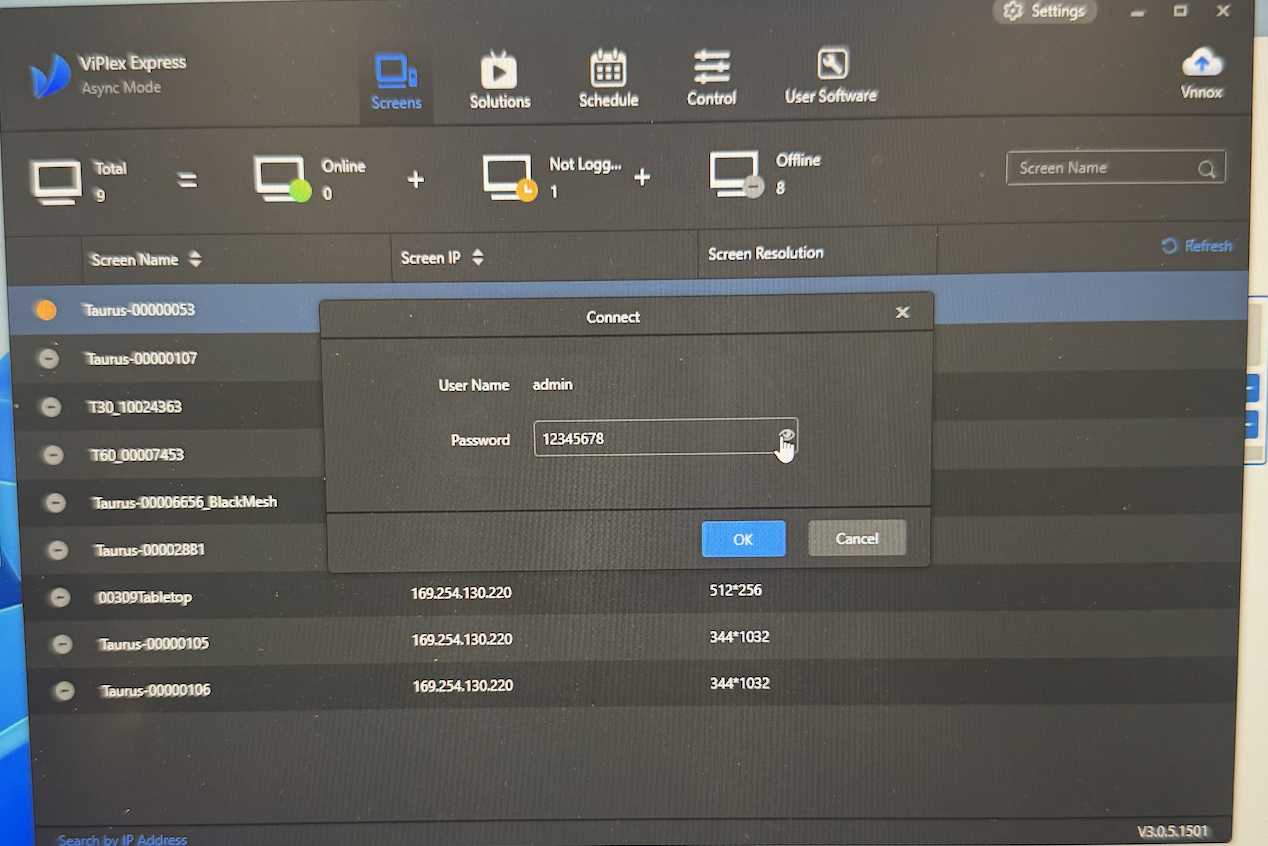
Login to the player using the password: 12345678 (1 to 8) OR SN2008@+.
Access Secret "User Software" Menu
On the main terminal list, hover your mouse cursor between the status icons "Not Logged" and "Offline".
Type novasoft on your keyboard.
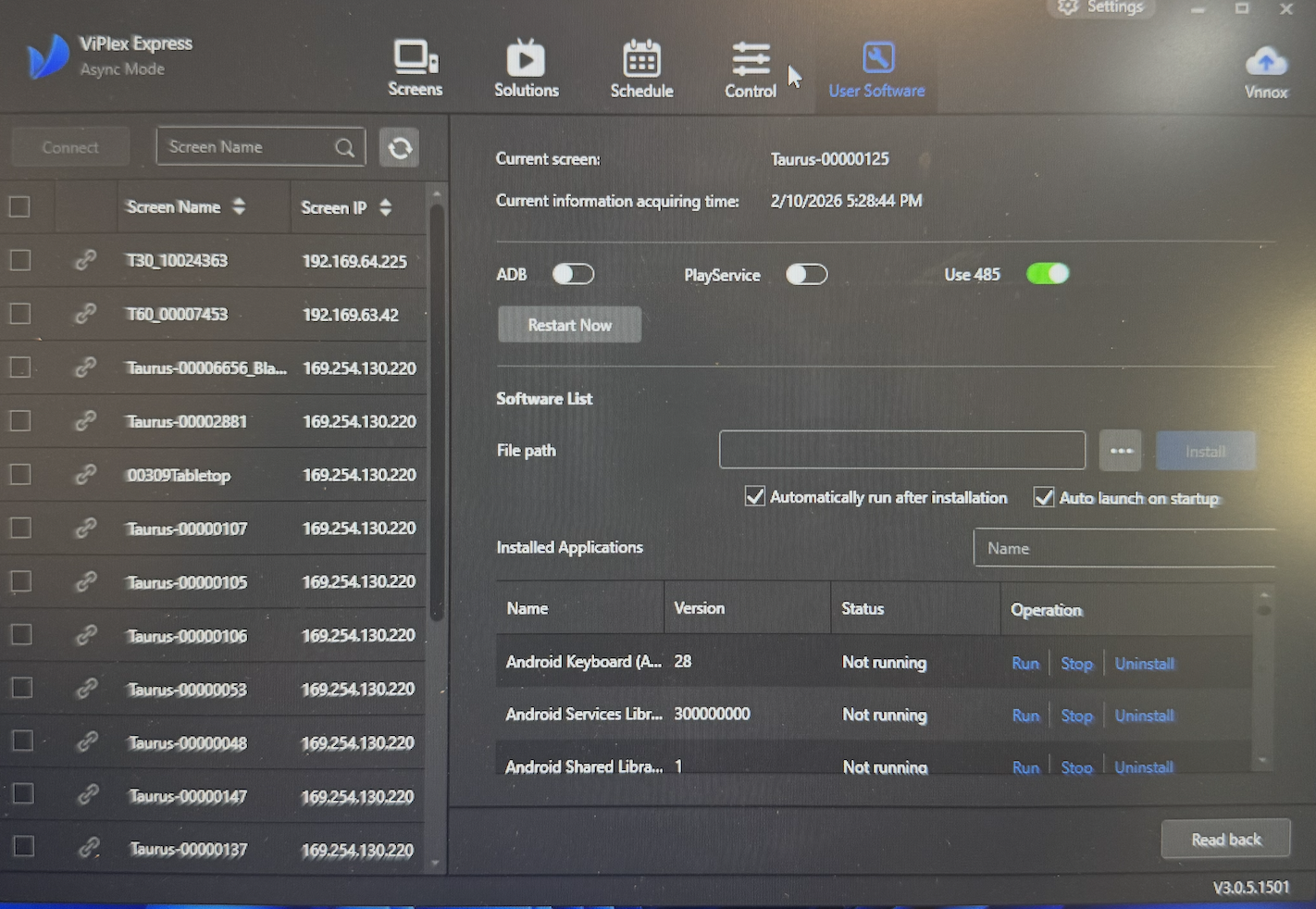
A hidden menu labeled "User Software" will appear to the left of the "Control" menu.
Authenticate in User Software
Click on the player name under the new User Software menu.
Log in with:
Username: admin
Password: SN2008@+ (If this fails, try 12345678).
Disable Factory Playback
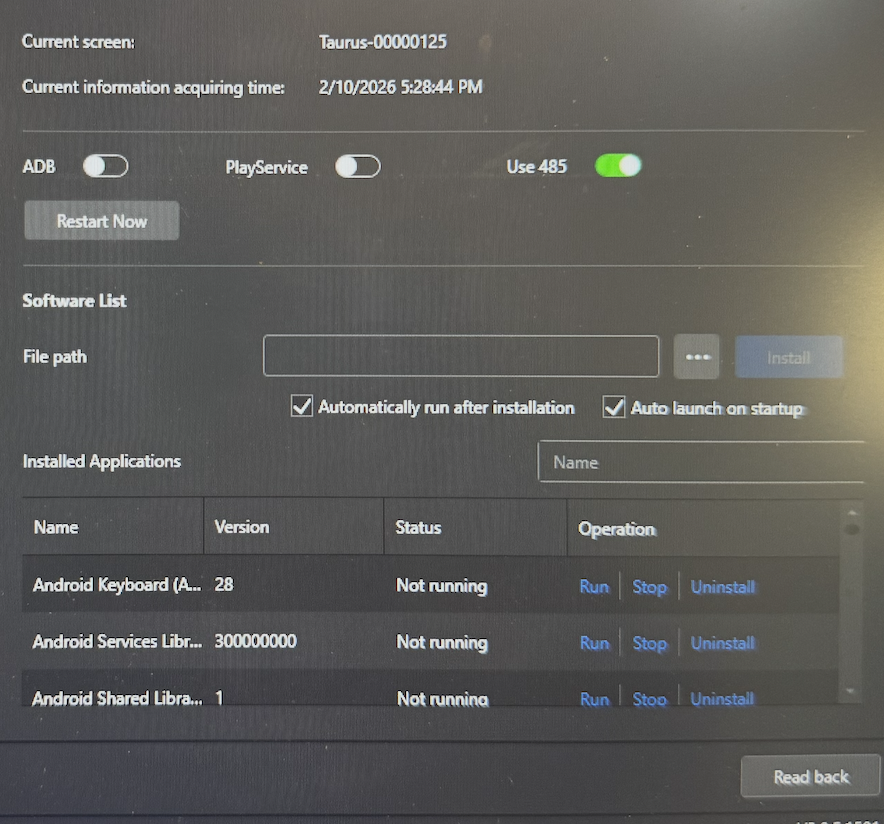
Locate Play Services (or "Factory Video/Configuration").
Action: Turn OFF / Disable this service.
Note: This is critical to stop the default boot video and allow Duggal CMS to take control.
Deploy Conductor APK
In the User Software menu, select the option to install an application.
Upload the conductor.apk file (previously downloaded from cms.duggal.com).
Check the following boxes before installing:
[x] Automatically launch app
[x] Automatic run application
Click Install.
Phase 2: Android System Configuration (On-Device)
Connect the Media Player's HDMI output to a standard monitor for this phase, as the native LED resolution (344x1032) may crop the Android settings menu.
Navigation Controls:
Left Click: Touch/Select
Right Click: Back/Exit
Step 1: Network & Activation
Connect the USB mouse and keyboard to the player.
If the Conductor app is already running, Right Click to exit to the desktop/launcher.
Go to Settings > Wi-Fi and connect the device to the internet.
Open the Conductor App.
Select Advanced Activation Mode.
Enter the following details:
QL Server Address: cms.duggal.com
QL Player Serial Number: (Enter the specific serial from your Duggal CMS dashboard)
Time Zone: Set according to the physical installation location.
Click ACTIVATE.
Step 2: Navori Engine Installation
Upon activation, a prompt will appear requesting permission to install the Navori Engine.
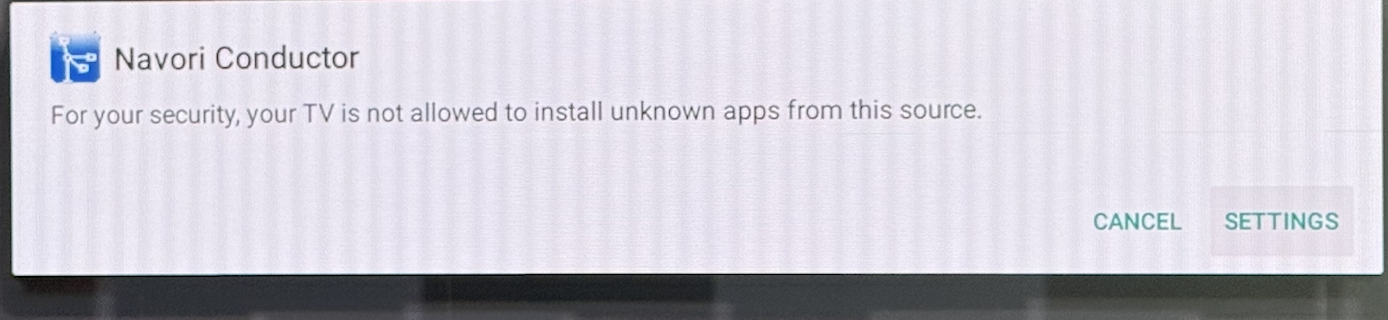
Select Settings on the prompt.
Toggle ON "Allow installation from unknown sources" for Navori Conductor.
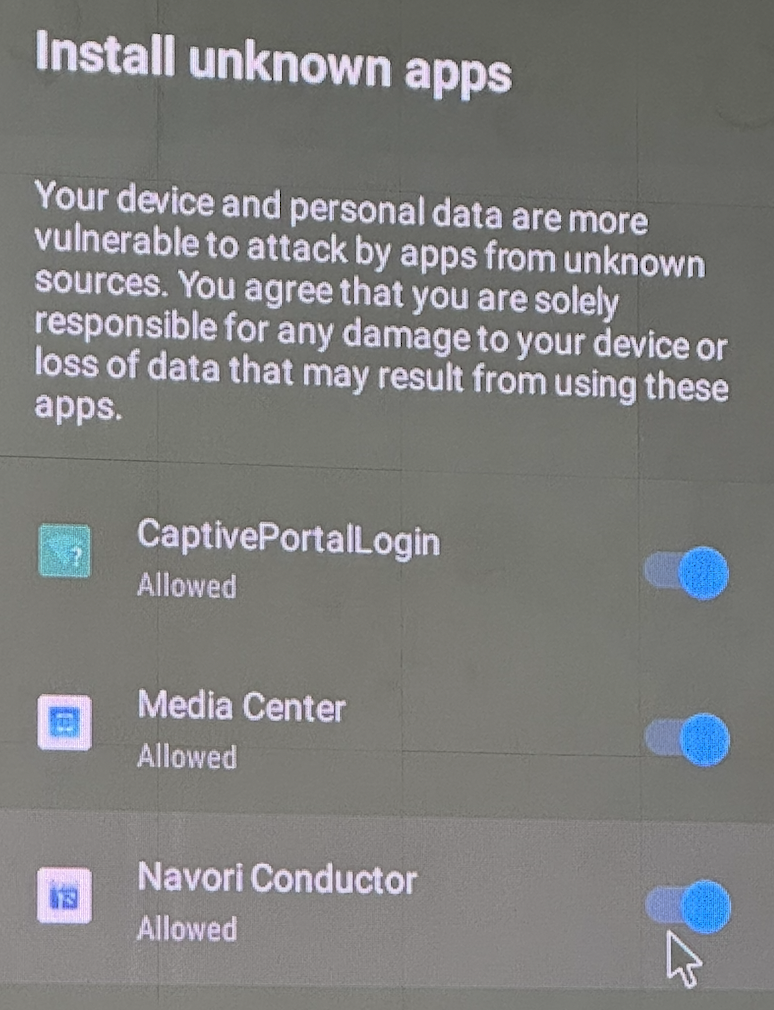
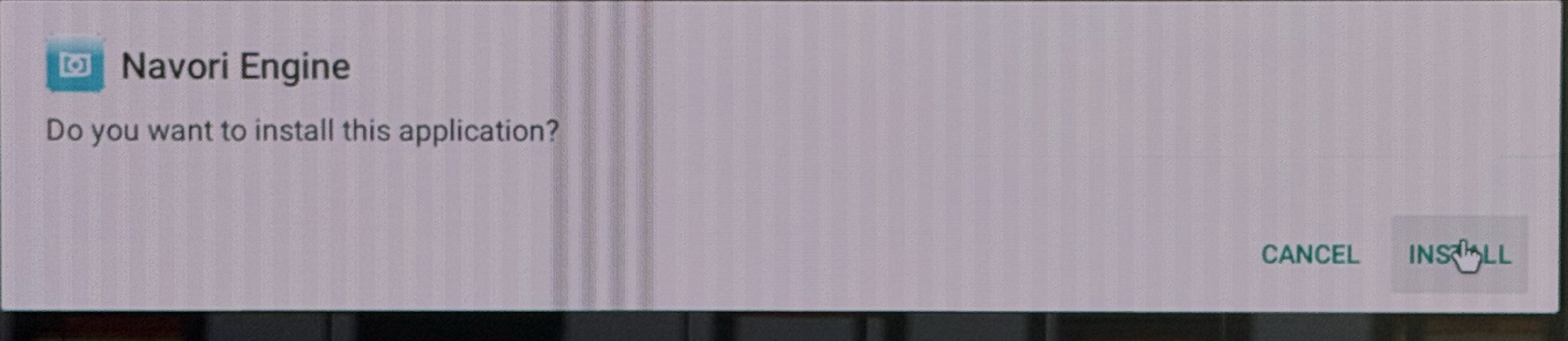
Return to the installation screen and click Install for Navori Engine.
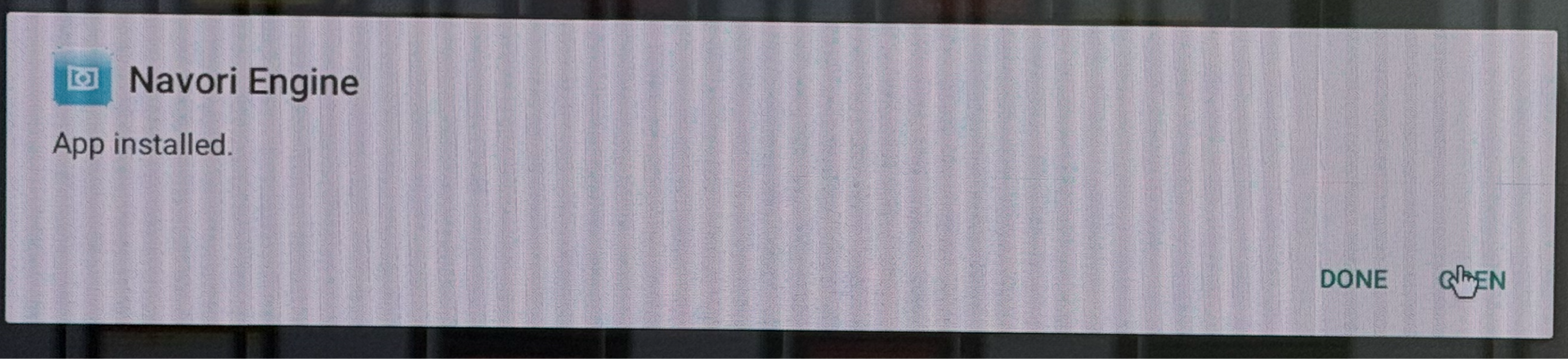
Once installed, close both apps.
Step 3: Critical Permissions & Optimization
Navigate to Android Settings > Apps > Special App Access and configure the following three sections:
A. UI & Permissions
Locate permissions for Navori Conductor.
Grant all requested permissions.
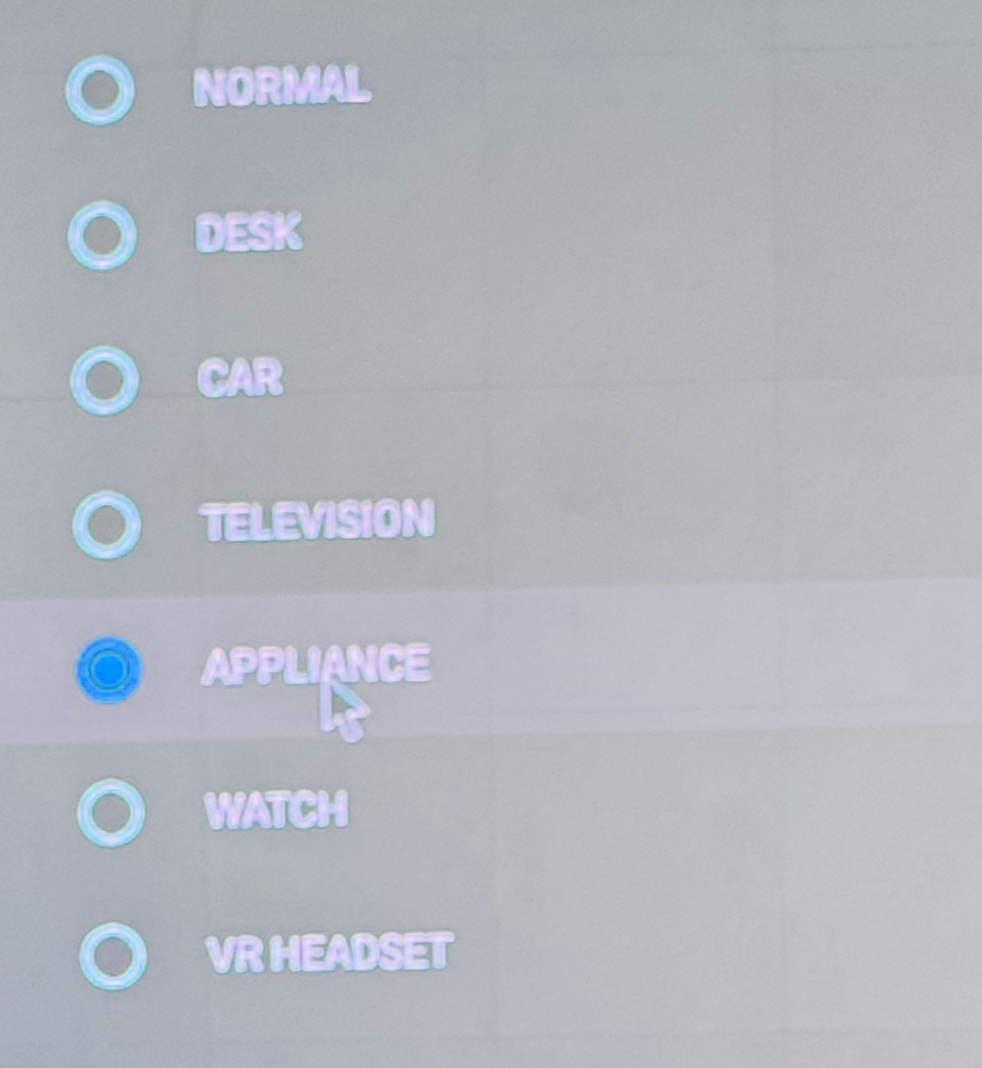
Set UI to Appliance (This typically sets the app as the default Home/Launcher).
Repeat this process for Navori Engine.
B. Energy Optimization (Prevent App Sleeping)
Go to Energy Optimization (Settings>Apps>Special App Access>Energy Optimization).
Ensure the switch is turned OFF (Don't Optimize) for:
Conductor
Navori Engine
Network Manager
C. Display Over Other Apps
Go to Display over other apps. (Settings>Apps>Special App Access>Display over other apps)
Ensure the switch is turned ON for:
Navori / Conductor
Phase 3: Final Verification
Disconnect the standard monitor and reconnect the player to the NEW PIXEL Kiosk (LED Display).
Reboot the media player.
Verify that the device boots directly into the Duggal CMS content without showing the NovaStar factory video.
Confirm the content is scaling correctly to the 344x1032 resolution.