
Digital Display: Quick Troubleshooting Guide
Please try these 3 steps before opening a support ticket.-----1. Check the Screen Power
If you have access to the remote control:
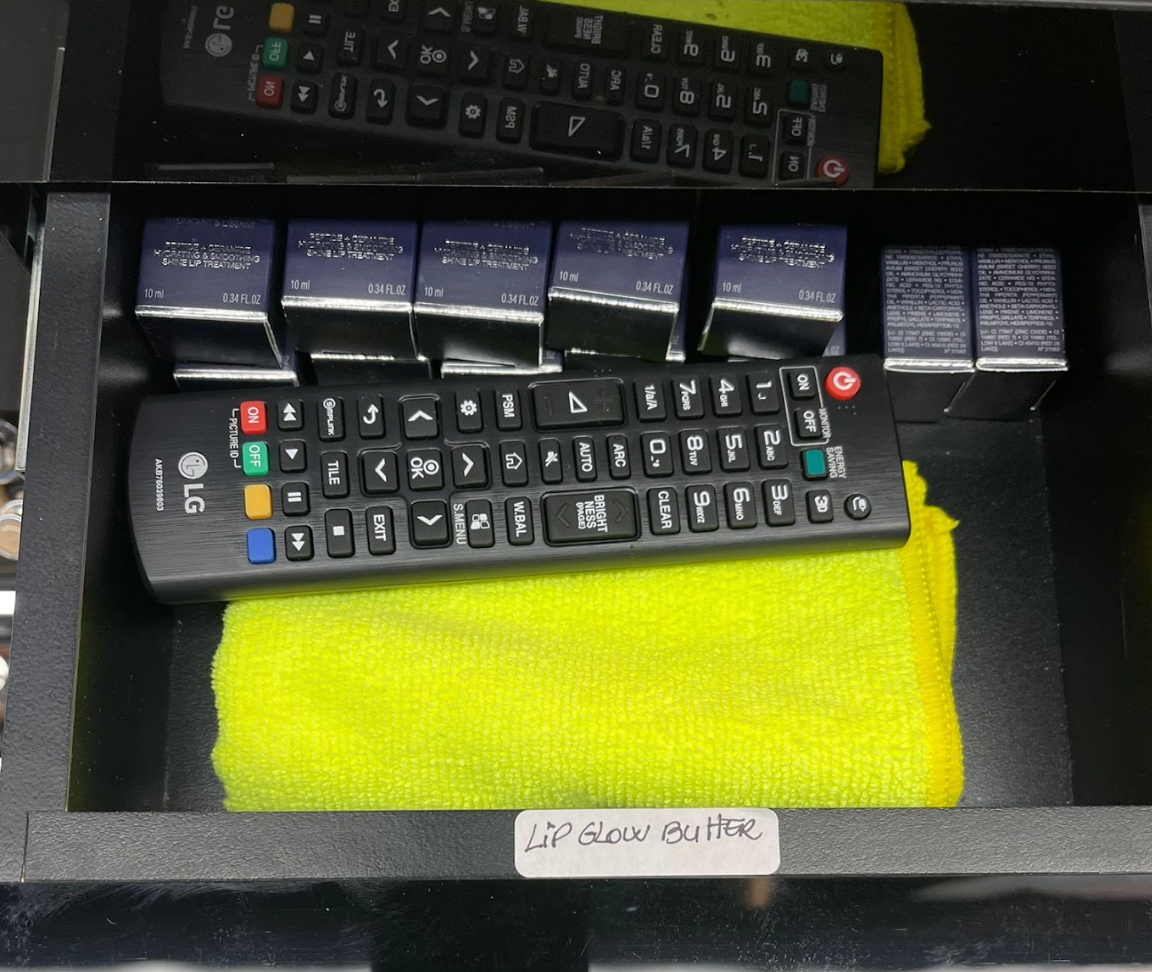
Point the remote at the screen and press the POWER button.
Wait 10 seconds to see if the image appears.
Note: If the screen has a red or orange light, it is in standby. A green or blue light means it is on.
-2.Reboot the Media Player
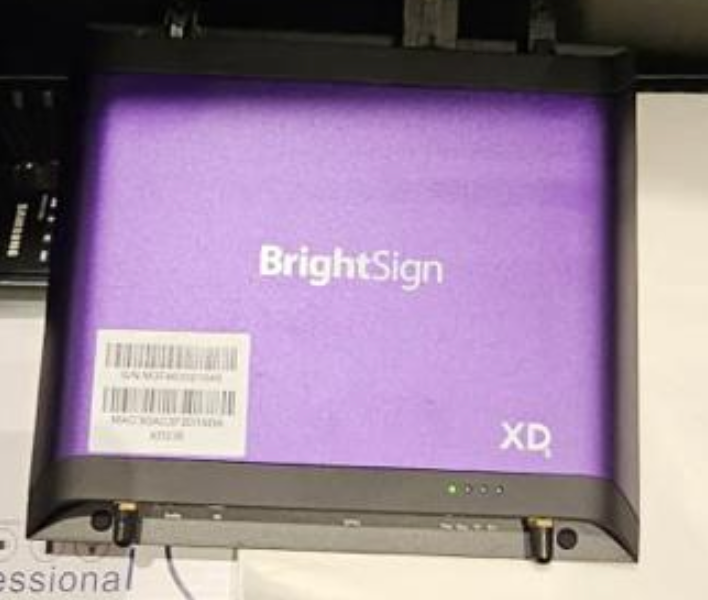
If you can reach the media player (usually a small black/purple/silver box or computer behind the screen or under the counter):
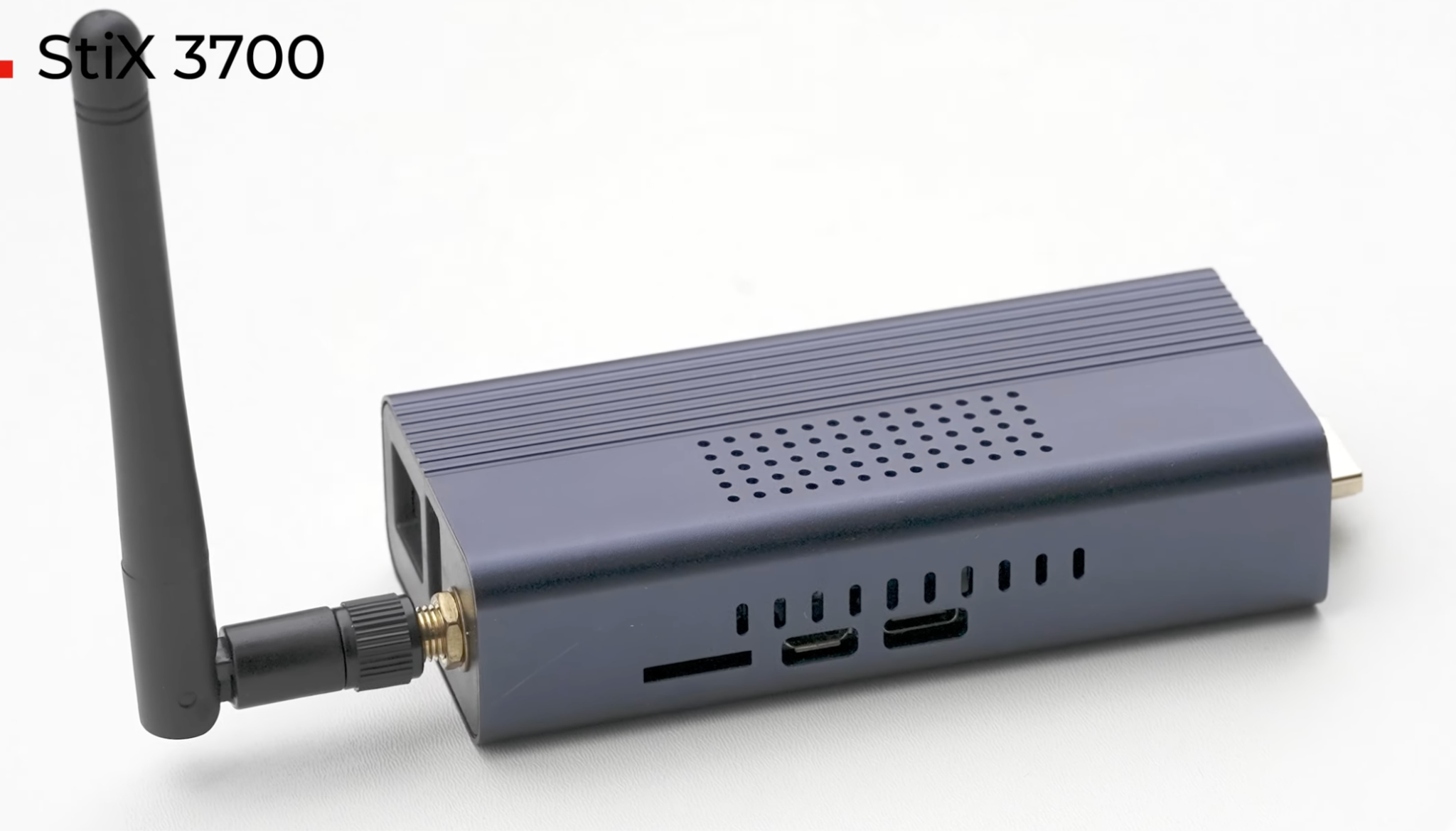
Unplug the power cable from the player.
Count to 10.
Plug it back in.
Wait 3-5 minutes for the system to reload the content.
-3. Reboot the Modem
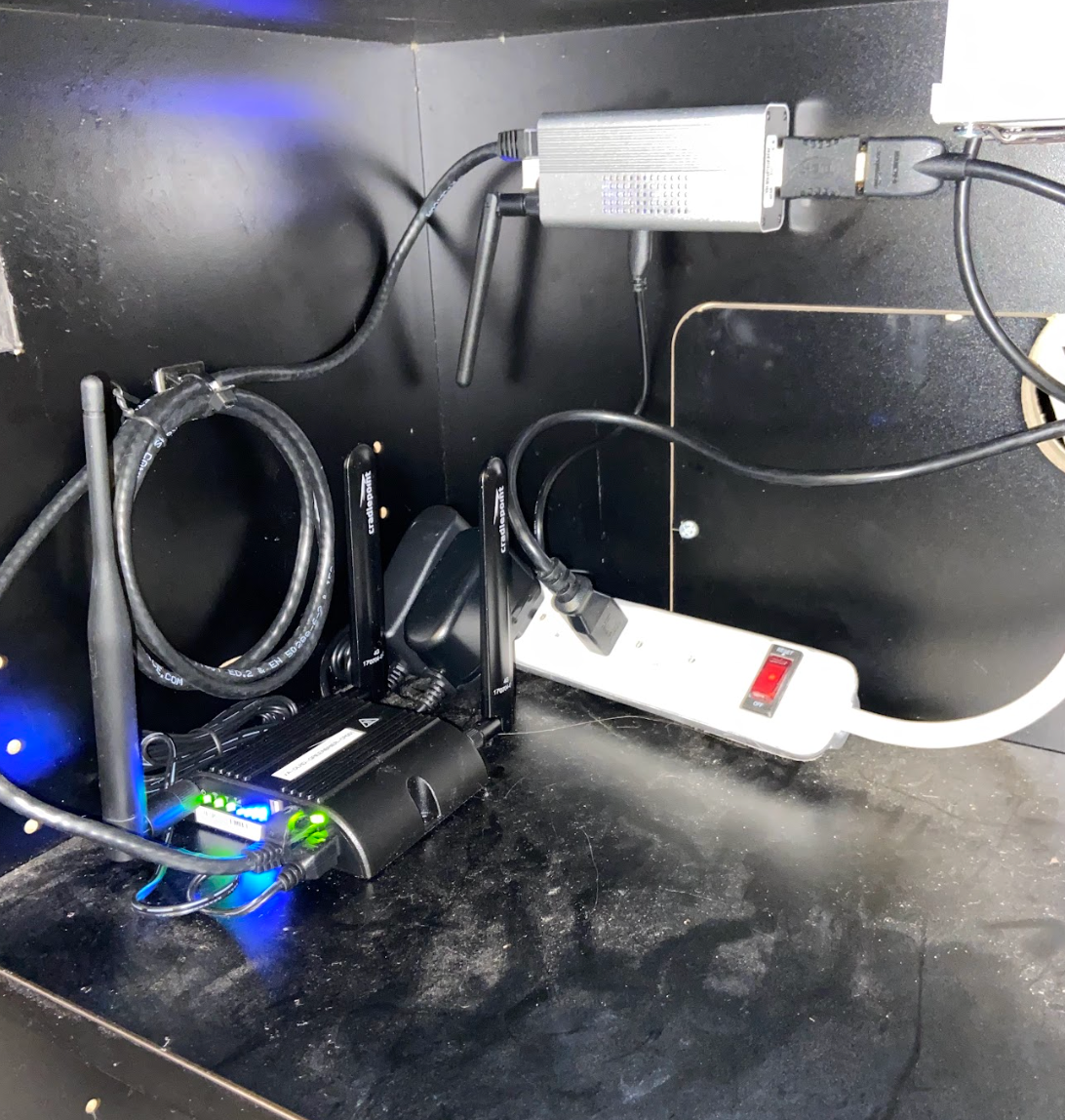
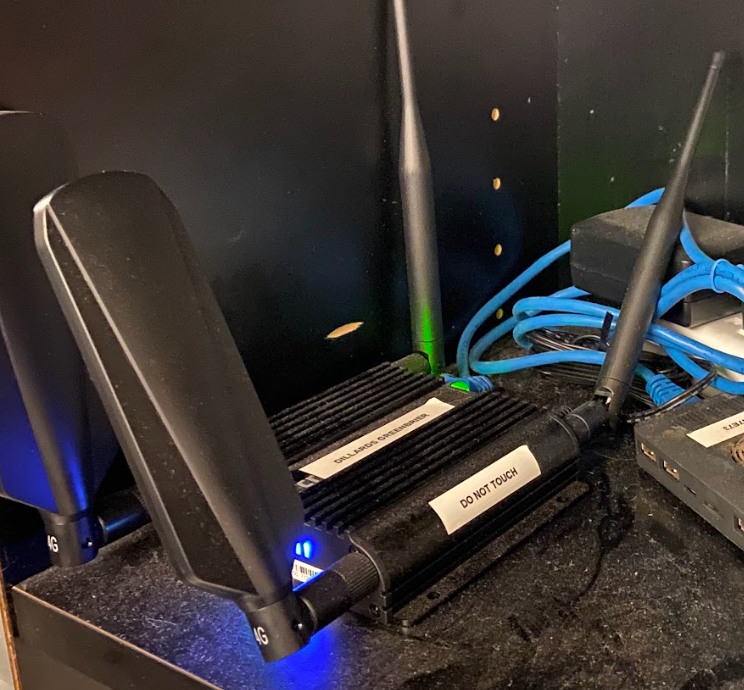
If you have access to the internet modem/router for this display:
Unplug the power cable from the modem.
Count to 10.
Plug it back in.
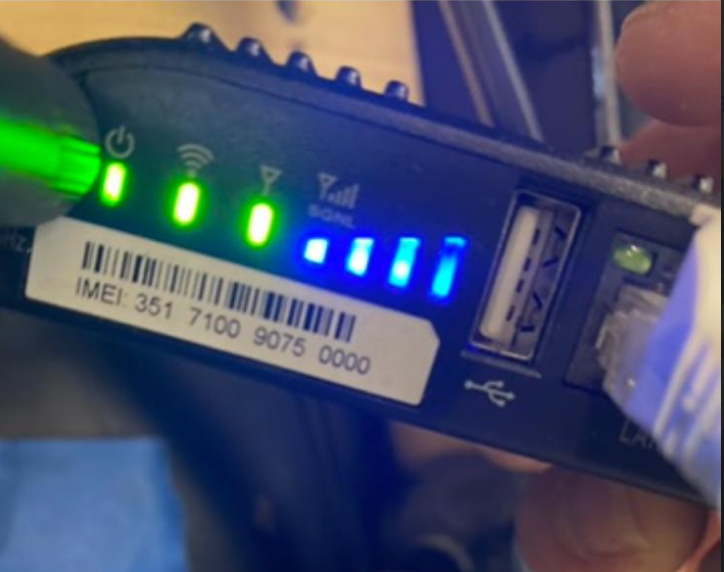
Wait 5 minutes for the connection to re-establish (look for green lights).
-----? Still Not Working?
If the issue persists, please contact Duggal Support.
To get you back up and running faster, please have this info ready:
Store Number: (e.g., SDM #1234)
Which Screen: (e.g., "The Wall Monitor" or "Fragrance Bar Screen")
Current Status: What is on the screen right now? (e.g., "Black," "No Signal," "Error Message," or "Blue Screen")
Troubleshooting: Did you try the reboots listed above? (Yes/No)
Contact Support
Submit a Ticket: help.duggal.com
Support Hotline: [+1-929-969-2158]